> ## Documentation Index
> Fetch the complete documentation index at: https://composio-27-feat-docs-revamp.mintlify.site/llms.txt
> Use this file to discover all available pages before exploring further.
# Connecting a Shopify Account using API Key
> Guide to getting your user's Shopify account connected using API Key
1. **Fetching authentication parameters** - Shopify requires an admin API access token and store subdomain for authentication.
2. **Collecting those parameters from the user** - Collect the admin API access token and store subdomain from your user.
3. **Initiating a connection** - Create a connection with the collected parameters.
4. **Verifying the connection status** - Check that the connection was successful by verifying the status.
```python Python Fetch auth params
from composio import ComposioToolSet, App
toolset = ComposioToolSet()
response = toolset.get_expected_params_for_user(app=App.SHOPIFY) # can use integration_id instead of app
print(response["expected_params"])
```
```javascript Javascript Fetch auth params
import { Composio, OpenAIToolSet } from "composio-core";
const toolset = new OpenAIToolSet();
const response = await toolset.getExpectedParamsForUser({
app: "shopify",
});
console.log(response["expectedInputFields"]);
```
### Parameters to fetch from the user
```shell Output of Python Code
[
ExpectedFieldInput(name='admin_api_access_token', type='string',
description='Your Admin api acess token for authentication which can be generated from your Shopify app settings. Create a Shopify app and configure the required scopes. You can access your app settings and generate the token by visiting https://admin.shopify.com/store//settings/apps/development',
displayName='Admin Api Access Token', is_secret=False, required=True,
expected_from_customer=True, default=None, get_current_user_endpoint=None),
ExpectedFieldInput(name='shop', type='string',
description="Your Shopify store's subdomain (e.g., your-store-name in your-store-name.myshopify.com)",
displayName='Store Subdomain', is_secret=False, required=True,
expected_from_customer=True, default=None, get_current_user_endpoint=None)
]
```
```shell Output of Javascript Code
[
{
name: 'admin_api_access_token',
type: 'string',
description: 'Your Admin api acess token for authentication which can be generated from your Shopify app settings. Create a Shopify app and configure the required scopes. You can access your app settings and generate the token by visiting https://admin.shopify.com/store//settings/apps/development',
display_name: 'Admin Api Access Token',
default: null,
required: true,
get_current_user_endpoint: null,
expected_from_customer: true,
is_secret: false,
displayName: 'Admin Api Access Token'
},
{
name: 'shop',
type: 'string',
description: "Your Shopify store's subdomain (e.g., your-store-name in your-store-name.myshopify.com)",
display_name: 'Store Subdomain',
default: null,
required: true,
get_current_user_endpoint: null,
expected_from_customer: true,
is_secret: false,
displayName: 'Store Subdomain'
}
]
```
As stated in the output, you need to fetch the `admin_api_access_token` and `shop` from the user.
You can fetch from user via `chat`, `ui`, `form`, `api`, etc. We will use `terminal` based approach as example.
```python Python Fetch parameters
expected_params = response["expected_params"]
collected_params = {}
if len(expected_params) > 0:
for param in expected_params:
user_input = input(f"Enter the value for '{param.displayName}', Description: {param.description}:\n")
collected_params[param.name] = user_input
print(collected_params)
```
```javascript Javascript Fetch parameters
const collectedParams = {};
if (response["expectedInputFields"].length > 0) {
for (const param of response["expectedInputFields"]) {
const userInput = await new Promise(resolve => {
process.stdout.write(`Enter the value for '${param.displayName}', Description: ${param.description}:\n`);
process.stdin.once('data', data => {
resolve(data.toString().trim());
});
});
collectedParams[param.name] = userInput;
}
}
console.log(collectedParams);
```
```python Python Initiate connection
# This is the URL that the user will be redirected to after completing the authentication process
redirect_url = "https://yourwebsite.com/connection/success"
# this is only useful for oauth based flows involving redirect based authentication.
entity_id = "Jessica" # This is the unique identifier for the user
# Initiate the connection
connection_request = toolset.initiate_connection(
connected_account_params=collected_params, # send collected params
entity_id=entity_id,
app=App.SHOPIFY,
redirect_url=redirect_url,
)
if connection_request.connectionStatus == "INITIATED":
print(connection_request.redirectUrl)
# complete the connection by redirecting the user to the redirectUrl
elif connection_request.connectionStatus == "ACTIVE":
print("Connection Status is active, you can now test by calling the tool.")
# active connection means the user has completed the authentication process.
# the API Key entered might still be invalid, you can test by calling the tool.
else:
print("Connection process failed, please try again.")
```
```javascript Javascript Initiate connection
const redirectUrl = "https://yourwebsite.com/connection/success"
const entityId = "Jessica" // This is the unique identifier for the user
const connectionRequest = await toolset.client.connectedAccounts.initiate({
data: {
...collectedParams // send collected params
},
entityId: entityId,
integrationId: expectedInputFields.integrationId,
redirectUri: redirectUrl,
authMode: "OAUTH2",
authConfig: {},
});
if (connectionRequest.connectionStatus === "INITIATED") {
console.log(connectionRequest.redirectUrl);
// complete the connection by redirecting the user to the redirectUrl
} else if (connectionRequest.connectionStatus === "ACTIVE") {
console.log("Connection Status is active, you can now test by calling the tool.");
// active connection means the user has completed the authentication process.
// the API Key entered might still be invalid, you can test by calling the tool.
} else {
console.log("Connection process failed, please try again.");
}
```
This is what the output looks like:
```shell Output
Enter the value for 'Admin Api Access Token', Description: Your Admin api acess token for authentication which can be generated from your Shopify app settings. Create a Shopify app and configure the required scopes. You can access your app settings and generate the token by visiting https://admin.shopify.com/store//settings/apps/development:
123
Enter the value for 'Store Subdomain', Description: Your Shopify store's subdomain (e.g., your-store-name in your-store-name.myshopify.com):
myshop
{'admin_api_access_token': '123', 'shop': 'myshop'}
Connection Status is active, you can now test by calling the tool.
```
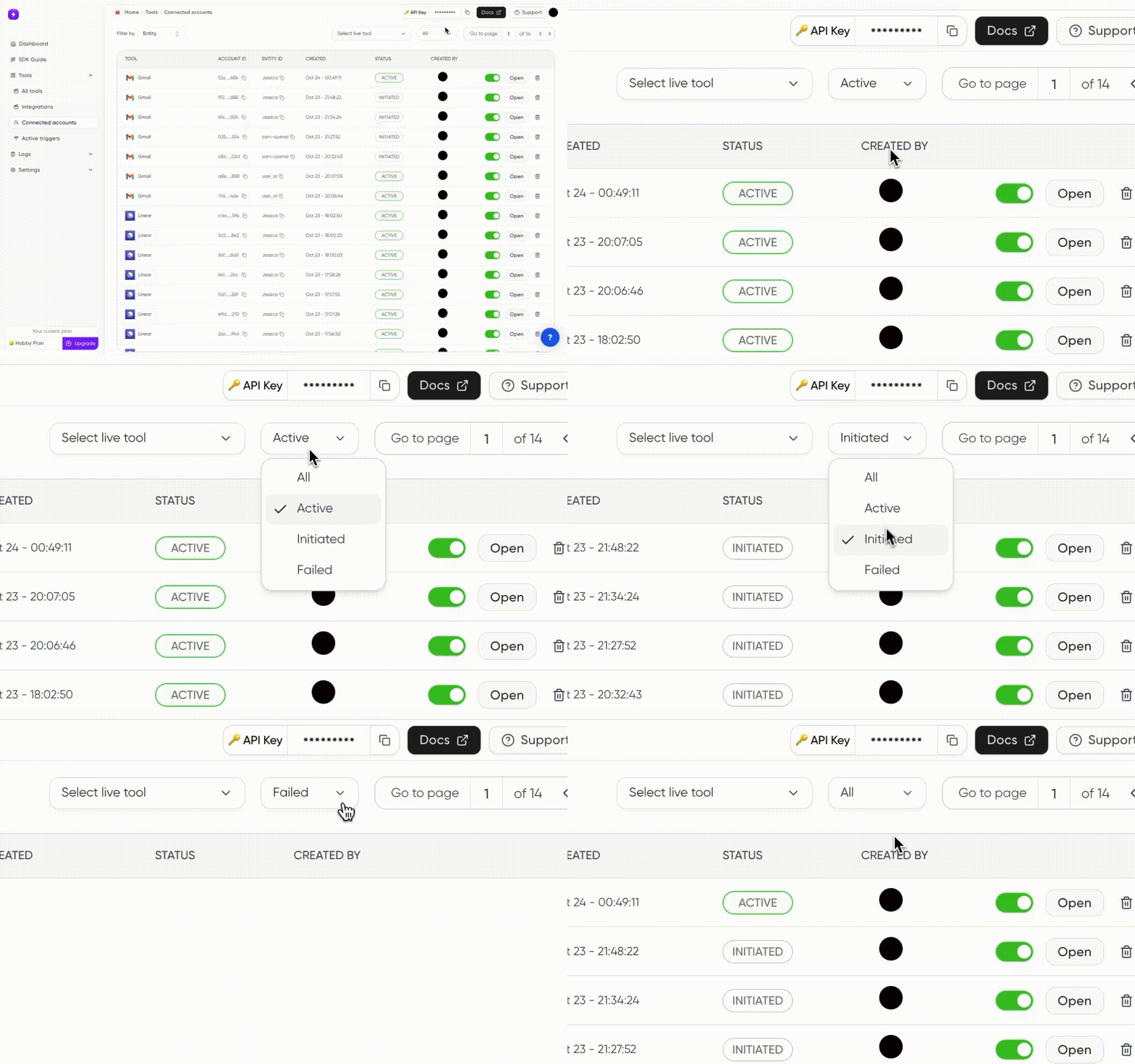
You can also see the [dashboard](https://app.composio.dev/connections?page=1\&status=ALL) for the connection status like this:
```python Python Fetch connection using ID
connected_account = toolset.get_connected_account(connection_request.connectedAccountId)
```
```javascript Javascript Fetch connection using ID
const connectedAccount = await toolset.client.connectedAccounts.get({connectedAccountId:connectionRequest.connectedAccountId})
```
You have successfully **Connected Your User's Shopify Account**.
You can also see the [dashboard](https://app.composio.dev/connections?page=1\&status=ALL) for the connection status.
You have successfully **Connected Your User's Shopify Account**!! 🎉
Connect your users Gmail Account in similar fashion