> ## Documentation Index
> Fetch the complete documentation index at: https://composio-27-feat-docs-revamp.mintlify.site/llms.txt
> Use this file to discover all available pages before exploring further.
# Connecting your User's Gmail Account
> Here's how to connect your user to Gmail
1. **Fetching authentication parameters** - Gmail uses OAuth 2.0 for authentication and so no parameters are required upfront.
2. **Collecting those parameters from the user** - No collection is required as no parameters are required upfront.
3. **Initiating a connection** - Initiate a connection with the redirect URL. (No parameters are required to be sent in the body)
4. **Handling the OAuth flow** - Redirect the user to the URL received in step 3.
5. **Verifying the connection status** - Check that the connection was successful
```python Python Fetch auth params
from composio import ComposioToolSet, App
toolset = ComposioToolSet()
response = toolset.get_expected_params_for_user(app=App.GMAIL) # can use integration_id instead of app
print(response["expected_params"])
```
```javascript Javascript Fetch auth params
import { Composio, OpenAIToolSet } from "composio-core";
const toolset = new OpenAIToolSet();
const response = await toolset.getExpectedParamsForUser({
app: "gmail",
authScheme: "OAUTH2",
});
console.log(response);
```
Gmail uses OAuth 2.0 for authentication, which requires a redirect URL to handle the OAuth callback.
While Gmail doesn't require any upfront parameters from the user, we'll demonstrate the parameter fetching step to show the complete flow.
### Parameters to fetch from the user
```shell Output of Python Code
[]
```
```shell Output of Javascript Code
[]
```
As stated in the output, you don't need to fetch any parameters from the user. So we can directly initiate the connection.
```python Python Initiate connection
# This is the URL that the user will be redirected to after completing the authentication process
redirect_url = "https://yourwebsite.com/connection/success"
# this is only useful for oauth based flows involving redirect based authentication.
entity_id = "Jessica" # This is the unique identifier for the user
# Initiate the connection
connection_request = toolset.initiate_connection(
entity_id=entity_id,
app=App.GMAIL,
redirect_url=redirect_url,
)
if connection_request.connectionStatus == "INITIATED":
print(connection_request.redirectUrl)
# complete the connection by redirecting the user to the redirectUrl
print("Connection Status should be active after user completes the authentication process, you can now test by fetching the connection.")
elif connection_request.connectionStatus == "ACTIVE":
print("Connection Status is active, you can now test by calling the tool.")
# active connection means the user has completed the authentication process.
# the API Key entered might still be invalid, you can test by calling the tool.
else:
print("Connection process failed, please try again.")
```
```javascript Javascript Initiate connection
const redirectUrl = "https://yourwebsite.com/connection/success"
const entityId = "Jessica" // This is the unique identifier for the user
const connectionRequest = await toolset.client.connectedAccounts.initiate({
entityId: entityId,
integrationId: expectedInputFields.integrationId,
redirectUri: redirectUrl,
authMode: "OAUTH2",
authConfig: {},
});
if (connectionRequest.connectionStatus === "INITIATED") {
console.log(connectionRequest.redirectUrl);
// complete the connection by redirecting the user to the redirectUrl
} else if (connectionRequest.connectionStatus === "ACTIVE") {
console.log("Connection Status is active, you can now test by calling the tool.");
// active connection means the user has completed the authentication process.
// the API Key entered might still be invalid, you can test by calling the tool.
} else {
console.log("Connection process failed, please try again.");
}
```
This is what the output looks like:
```shell Output
# If connectionStatus is "INITIATED":
https://accounts.google.com/o/oauth2/v2/auth?client_id=...&redirect_uri=...&scope=...
Connection Status should be active after user completes the authentication process, you can now test by fetching the connection.
# If connectionStatus is "ACTIVE":
Connection Status is active, you can now test by calling the tool.
```
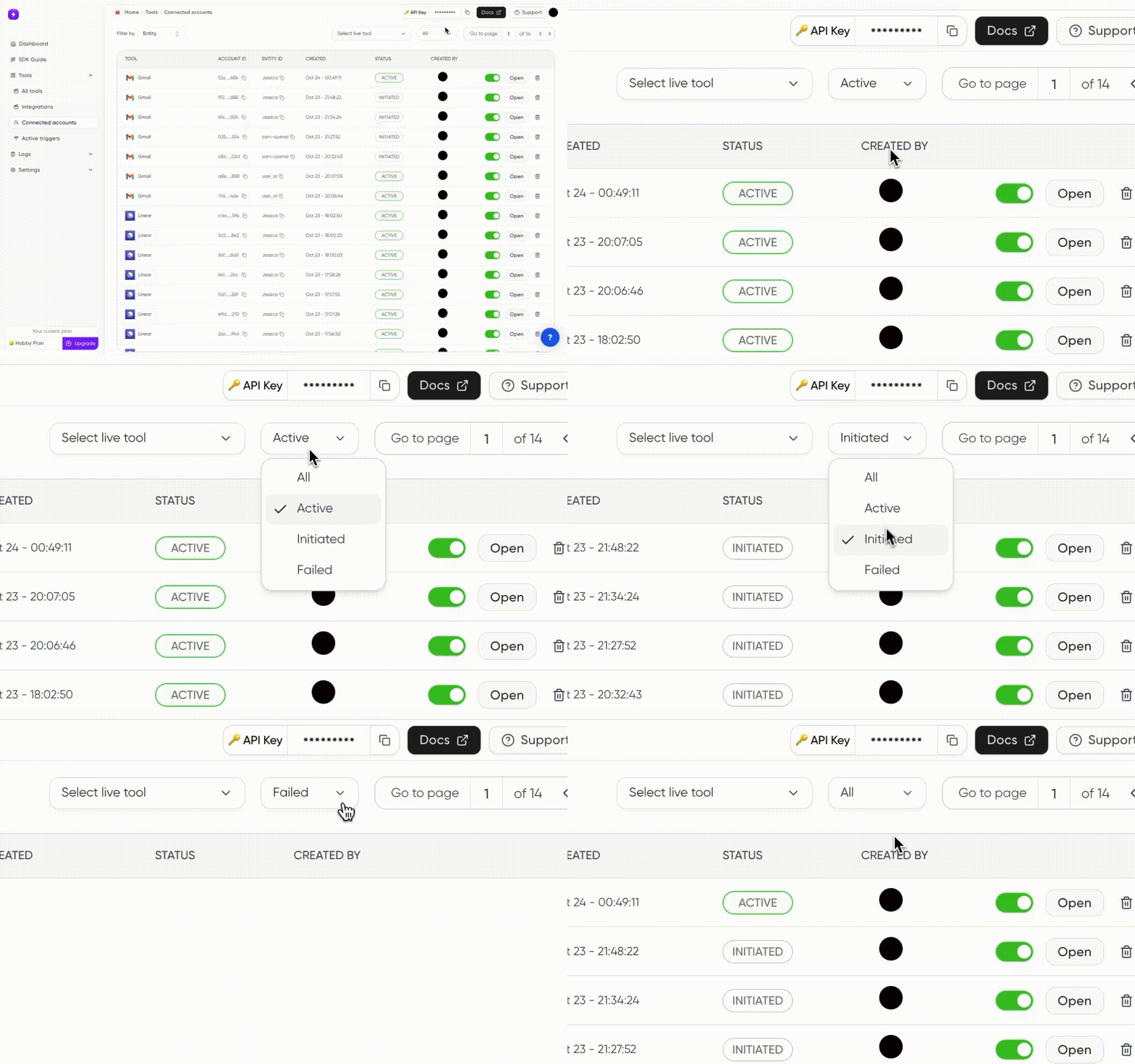
You can also see the [dashboard](https://app.composio.dev/connections?page=1\&status=ALL) for the connection status like this:
```python Python Fetch connection using ID
connected_account = toolset.get_connected_account(connection_request.connectedAccountId)
```
```javascript Javascript Fetch connection using ID
const connectedAccount = await toolset.client.connectedAccounts.get({connectedAccountId:connectionRequest.connectedAccountId})
```
You can also see the [dashboard](https://app.composio.dev/connections?page=1\&status=ALL) for the connection status.
You have successfully **Connected Your User's Gmail Account**!! 🎉
Connect your users Shopify Account in similar fashion